Kobold
Brief overview
Kobold is a miniApp to export, import, update and transform device properties.
- Examples of the use of this app are:
import nautobot “default” values like locations, roles or device types
import devices using xlsx files or json (hldm)
exporting devices to json (hldm) or xlsx files
updating device properties
transforming device properties like location or names
Let it run
usage: kobold.py [-h] [--loglevel LOGLEVEL] [--loghandler LOGHANDLER] [--uuid UUID]
                 [--config CONFIG] [--debug-veritas] {update,export,import,transform} ...

positional arguments:
  {update,export,import,transform}
    update              update devices
    export              export data of devices
    import              import data to nautobot
    transform           transform properties of devices

options:
  -h, --help            show this help message and exit
  --loglevel LOGLEVEL   used loglevel
  --loghandler LOGHANDLER
                        used log handler
  --uuid UUID           database logger uuid
  --config CONFIG       updater config file
  --debug-veritas       enable veritas debug logging
Options for all commands
You can set the loglevel, loghandler, the UUID for all the commands. If you want to see debug messages of the veritas lib add –debug-veritas at the beginning.
The syntax is:
>>> ./kobold --loglevel debug [--debug-veritas] {update,export,transform} ....
You must write these three parameters at the beginning of the command.
Exporter
To export device properties, configs, facts or the HLDM use the exporter.
usage: kobold.py export [-h] --playbook PLAYBOOK --job JOB [--profile PROFILE]
                        [--username USERNAME] [--password PASSWORD]

options:
  -h, --help           show this help message and exit
  --playbook PLAYBOOK  playbook config to use
  --job JOB            job to run
  --profile PROFILE    profile to get login credentials
  --username USERNAME  login username
  --password PASSWORD  login password
To start a job, you must specify the name of the job. To use the exporter you have to write a playbook. A playbook has the following structure:
---
jobs:
  - job: export_properties
    description: export properties
    devices:
      sql:
        # the values of the select statement must include the columns you want to export
        select: id, name, primary_ip4
        from: nb.devices
        where: name__ic=local
    tasks:
      - export:
        - content: properties
          header: True
          columns: id, name, primary_ip4.address, primary_ip4.interfaces.name, checksum
          format: excel
          filename: ./export/properties.xlsx
The parameter ‘content’ specifies what to do. It is either ‘properties’, ‘config’, ‘facts’ or ‘hldm’. The two jobs ‘config’ and ‘facts’ require either a profile or a username/password because these two jobs have to log on to the devices.
You can export a device to a xlsx file using “content: device_to_xlsx”. However, the corresponding playbook looks a little different and is described below.
Export device properties
Using the playbook above, the miniApp exports the device properties
id
name
primary_ip4.address (the primary IP Address)
primary_ip4.interfaces.name (the name of the primary interface)
checksum (md5 hash of the former columns)
and writes the data to a xlsx file named ‘./export/properties.xlsx’. The result looks like this:
./kobold.py export --profile default --playbook playbooks/export.yaml --job export_properties

You can then modify the data and reimport it using the kobold updater.
Export the HLDM
To export the HLDM of devices use this playbook:
- job: export_hldm
  description: export HLDM
  devices:
    sql:
      select: name
      from: nb.devices
      where: name=lab.local
  tasks:
    - export:
      - content: hldm
        directory: hldm/__location.name__
        filename: __name__.json
And then use this command:
./kobold.py export --profile default --playbook playbooks/export.yaml --job export_hldm
2024-02-04 16:40:20 | INFO | unset | starting job export_hldm / export HLDM
2024-02-04 16:40:20 | INFO | unset | exporting [{'content': 'hldm', 'directory': 'hldm/__cf_net__/__location.name__', 'filename': '__name__.json'}]
Export a device to a xlsx sheet
You can use the kobold to export a device to an Excel sheet.
./kobold.py export --playbook playbooks/export_device.yaml --job device_to_xlsx
Which data is exported can be configured in the playbook.
---
jobs:
  - job: device_to_xlsx
    description: export devices to xlsx file
    devices:
      sql:
        # the values of the select statement must correspond to the mapping
        select: name, role, device_type, serial, asset_tag, location, rack, face, position, vrfs, status, platform, primary_ip4, custom_fields, tags, interfaces
        from: nb.devices
        where: name__ic=local
    tasks:
      - export:
        - content: device_to_xlsx
          filename: ./export/__name__.xlsx
          columns:
            device:
              - name
              - role.name
              - device_type.model
              - serial
              - asset_tag
              - location.name
              - location.location_type.name
              - rack.name
              - rack.rack_group.name
              - face
              - position
              - vrfs
              - status.name
              - platform.name
              - primary_ip4.interfaces[0].name
              - custom_fields.net
              - custom_fields.snmp_credentials
              - tags
            interfaces:
              - name
              - status.name
              - type
              - ip_addresses[x].address
              - description
              - mode
              - lag.name
              - untagged_vlan.vid
              - tagged_vlans[x].vid
          colors:
            header: 004c81ba
            header_font: FFFFFF
            default: 00FFFFFF
            name: 00FFFFFF
            role.name: 00FFFFFF
            device_type.model: 00D9EEFF
            serial: 00D9EEFF
            asset_tag: 00D9EEFF
            location.name: 00FFFFFF
            location.location_type.name: 00FFFFFF
            rack.name: 00FFFFFF
            rack.rack_group.name: 00FFFFFF
            face: 00FFFFFF
            position: 00FFFFFF
            vrfs: 00D9EEFF
            status.name: 00FFFFFF
            platform.name: 00FFFFFF
            primary_ip4.interfaces[0].name: 00FFFFFF
            custom_fields.net: 00D9EEFF
            custom_fields.snmp_credentials: 00D9EEFF
            tags: 00D9EEFF
Updater
With the help of the updater you can:
import data that was exported (and maybe modified)
update device properties
transform device properties (upper case device names etc.)
usage: kobold.py update [-h] --filename FILENAME [--job JOB] [--where WHERE]
                        [--force] [--dry-run] [--add-missing-data]

options:
  -h, --help           show this help message and exit
  --filename FILENAME  name of file to update data
  --job JOB            job to run
  --where WHERE        overwrite where statement
  --force              force bulk updates even if checksum equals
  --dry-run            print updates only
  --add-missing-data   add missing data if possible (eg. IP-address)
Update devices using csv or xlsx files
To update some device data that was exported and modified before, use this command:
./kobold.py update --filename export/properties.xlsx [--add-missing-data] [--dry-run]
This updates the data. If you change the primary interface and the primary IP address and these are not yet in the IPAM, the –add-missing-data parameter must be added.
Write your own plugins to update device properties
You can write your own plugins to update device properties. The plugin must be in the ./kobold/plugins directory. To use your plugin you have to add the path and the name of the plugin to the configuration file. The configuration have the following structure:
---
update:
  - job: update_snmp_credentials
    description: Checks whether the SNMP credentials are working and updates the snmp_credentials field.
    devices:
      select: name, primary_ip4, platform, cf_snmp_credentials
      from: nb.devices
      where: name=lab-04.local
    tasks:
      - mode: advanced
        # plugin to import
        plugin_dir: plugins
        plugin: check_snmp
        # call is the name of the registered method
        call: check_snmp_credentials
        # type can be autonomous, set_value
        type: autonomous
        # all arguments are passed to your method
        arguments:
          threads: 5
          update: true
          use: None
          repo_name: sot_data
          repo_apth: /home/user/veritasData/
          repo_filename: defaults/credentials.yaml
There are two types of plugins: autonomous and set_value. The first type is used when you want full control of your code. The second type is used when you want the kobold app to set a value to a property. In this case you have to return the value.
To add the method part of the kobold app you have to add the following code to your plugin:
from veritas.plugin import kobold

@kobold("your_name_of_the_plugin") # check_snmp_credentials in the above example
def your_method(self, **kwargs):
    # your code

    # in case of type set_value
    return "your_new_value"
Transformer
To transform some device properties use the transform command.
usage: kobold.py transform [-h] --filename FILENAME [--job JOB] [--where WHERE]
                           [--template TEMPLATE] [--dry-run]

options:
  -h, --help           show this help message and exit
  --filename FILENAME  name of file to transform data
  --job JOB            job to run
  --where WHERE        overwrite where statement
  --template TEMPLATE  template to use to update value
  --dry-run            print updates only
If you do not specify a job, all jobs will be executed. The directory ./kobold/transforms contains some examples. The structure of the configuration is similar to that of the update.
---
transform:
  - job: name_to_upper
    description: change hostname to upper case
    source:
      from: nb.devices
      where: name__ic=local
      named_groups:
        name: ^(?P<name>(.*))
    destination:
      name: "__name|upper__"
To transform a property you have to specify a ‘source’ and a ‘destination’. Firstly, the source specifies which devices are to be processed. Furthermore the source contains a regular expression, to be more precise a named group. This named group is used to transform the destination value. In the example above the named group catches the device name and saves this value in the variable ‘name’. This variable and a modifier (eg. upper) is then used to transform the property. The variable and the modifier are separated by a pipe (|).
Another example illustrates how to transform the location.
---
transform:
  - job: update_location
    description: Update Location to a001....
    source:
      from: nb.devices
      where: name__ic=local
      named_groups:
        hostname: ^(?P<alpha>(a|b|c))(?P<digits>\d+)\.
        device_type.model: ^(?P<model>(\w+))
    destination:
      location.name: __alpha____digits__
      location.location_type.name: branch
Importer
The importer is used to import new devices (hldm as json, xlsx or YAML), IP-addresses (xlsx) or nautobot default values like locations, roles or device types (yaml).
Use
usage: kobold.py import --filename FILENAME [--dry-run]
to import the data. You can find some examples in the ./kobold/imports directory.
It is not always possible to automatically recognize which endpoint to use. In this case you have to specify the endpoint by using –endpoint. The endpoint is the name of the nautobot module eg. racks.
To see what the importer would do use –dry-run.
A xlsx-sheet to import multiple devices looks like this:

You can use a sheet to import a device including interfaces:
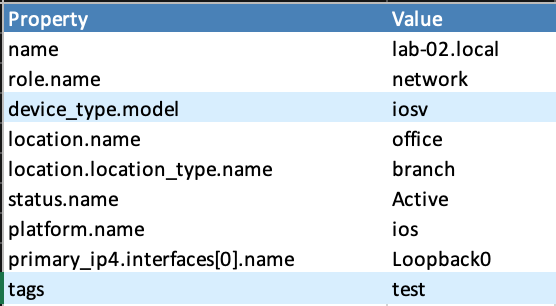

To import a list of IP addresses you can use a sheet that looks like this:

Last but not least to import a device using a YAML file use this syntax:
---
devices:
  - name: lab-04.local
    role:
      name: network
    device_type:
      model: iosv
    location:
      name: office
      location_type:
        name: branch
    status:
      name: Active
    platform:
      name: ios
    primary_ip4:
      interfaces:
        - name: Loopback0
    interfaces:
      - name: Loopback0
        type: virtual
        status:
          name: Active
        ip_addresses:
          - address: 192.168.0.1/32